# TroubleShoot
## Troubleshooting: Extension Not Opening
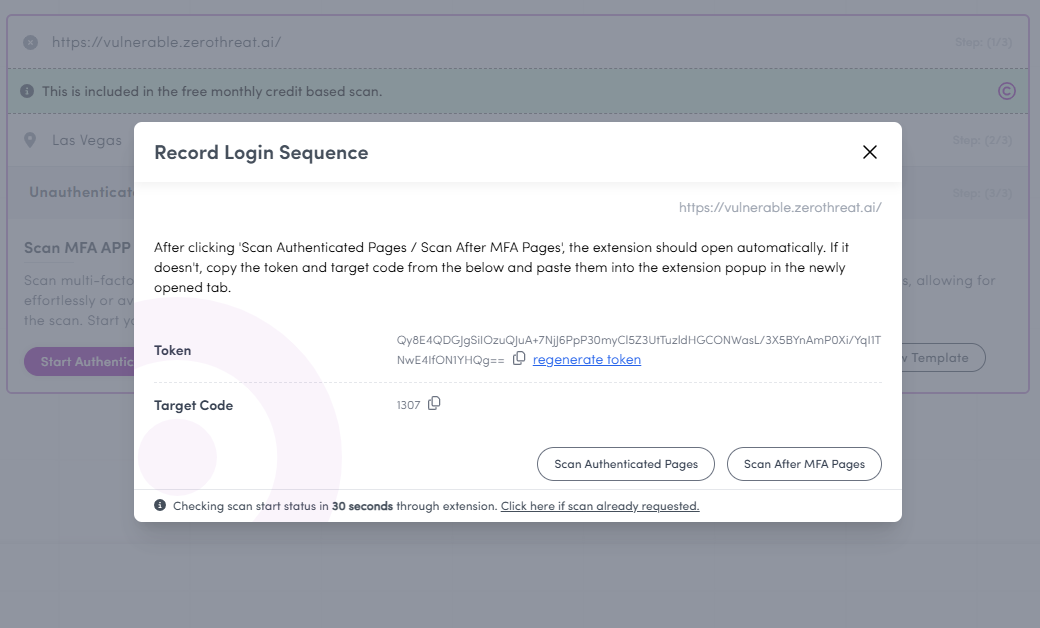
When creating a new template in ZeroThreat, the extension automatically opens in a new tab alongside the target page. However, in some cases, this may not happen due to browser restrictions or unexpected behavior. If the extension does not launch as expected, Then we have an alternate method that you can use to manually open the extension.
## Manually Opening the Extension
If the extension does not open automatically, follow these steps to load it manually:
1. **Open the Target Page:**
* In a new tab, open the target web application you want to record.
2. **Launch the ZeroThreat Extension:**
* Click on the extension icon **(****)** in your Chrome toolbar.
* Select **ZeroThreat Extension** to open it.
💡 **Tip:** If the extension icon is missing from your toolbar, click on the puzzle icon () in Chrome and pin it for quick access.
3. **Retrieve the Required Tokens:**
* Go back to ZeroThreat scanning portal and you will see a Steps token and Target code.
* Copy the **Token** and take note of the **Target Code** displayed on the page.
4. **Manually Configure the Extension:**
* Paste the copied **Steps Token** and **Target Code** into the extension.
* Click **Open Step Recorder** to complete the setup.
## Further Fixes
### The Extension Still Doesn’t Open
* Ensure the extension is **installed and enabled** in Chrome.
* Try restarting the browser and retrying the steps.
* Check if any **security policies or browser extensions** are blocking it.
### The Steps Token or Target Code is Invalid
* Double-check that you have copied the correct values.
* Refresh the Zerothreat page and generate a new token.
### Permissions Issue
* Some Chrome settings may prevent extensions from opening new tabs automatically.
* Go to **chrome://extensions/** and ensure that the Zerothreat extension has the necessary permissions.
{% hint style="danger" %}
**Browser Pop-up Restrictions:**\
Some browsers block Sites from opening new tabs due to security settings. If you notice this issue, try **allowing pop-ups for ZeroThreat.**
{% endhint %}

 **)** in your Chrome toolbar.
* Select **ZeroThreat Extension** to open it.
**)** in your Chrome toolbar.
* Select **ZeroThreat Extension** to open it.